
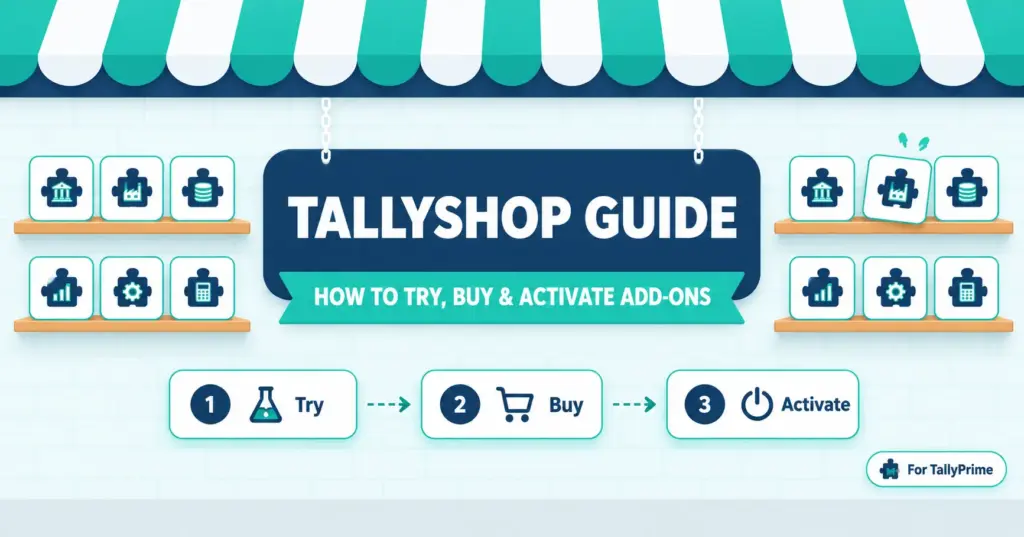
TallyShop Guide: How to Try, Buy & Activate Tally Add-Ons
TallyShop is Tally Solutions’ marketplace for add-ons built by authorised Tally Partners. If you use TallyPrime and need something the standard product doesn’t do, this is where you look. You open it from inside TallyPrime (F1 Help, then TallyShop) or from the Tally Solutions website. Then you find an add-on, try it, pay, and update your licence.
Most people land on this topic halfway through a task. The add-on they paid for isn’t showing up, or they can’t decide between buying something ready-made and paying a developer to build it. This guide covers how the store is organised, what kinds of add-ons it holds, how to try and buy one, how to switch it on afterwards, and where things tend to go wrong.
Table of Contents
ToggleWhat is TallyShop?
TallyShop is a central marketplace where you can buy add-ons for TallyPrime that authorised Tally Partners have developed. Tally’s documentation also lists upgrades for those add-ons there.
An add-on is a ready-made customisation. It might be a report laid out the way your auditor asks for it, or a workflow that only makes sense in your industry. The standard product can’t cover every case like that, so partners build the missing pieces and list them in the shop. You get the feature without commissioning anything.
It helps to know where add-ons sit among the other ways TallyPrime can be customized. Tally’s documentation names four types: local TDLs, account TDLs, remote TDLs and add-ons. TDL stands for Tally Definition Language, which is what these customisations are written in. The first three are files that you or a developer supply. Add-ons are the only type you buy through a marketplace.
TallyShop existed in the Tally.ERP 9 days too. You can still filter for that product, though TallyPrime is now the default selection.
How TallyShop is organised
The home screen gives you four ways to browse:
- Best Selling, ranked by how many copies of each add-on have been sold
- Recently Added, for newly listed add-ons
- Categories, which are industry-specific and mapped to different TallyPrime modules (covered in the next section)
- Top Developers, which ranks developers by sales and shows what each has built
If you already know what you want, type keywords into the search field and press Enter. Three filters narrow things further. Country is set at the top right. Switch it away from India and prices appear in US dollars, which catches people off guard.
Edition splits add-ons into Silver (single user) and Gold (multi-user). They’re meant to run on the matching TallyPrime licence, so pick the one that fits yours. Product lets you choose TallyPrime or Tally.ERP 9. Some add-ons work with both.
Click any add-on and you’ll see its Highlights, Price Details, Description and Requirements, plus a link to its manual. Read Requirements and skim the manual before anything else. They tell you what the add-on needs in order to run, and that’s cheaper to find out before you pay.
Key categories of TallyPrime add-ons and their benefits
The Categories screen in TallyShop is organised by industry and mapped to TallyPrime modules. Tally’s documentation names Banking, Manufacturing and Fixed Assets as examples and then adds “and so on”, which tells you the list isn’t fixed. So treat the table below as a map of the problems add-ons usually go after. The live Categories screen is the final word on what’s listed on the day you look.
Category | The kind of gap it fills | Where it tends to matter |
Banking | Extra tools around payments, receipts and bank-related entries | Businesses with a high volume of bank transactions |
Manufacturing | Industry-specific production tracking and reports | Factories and processing units |
Fixed Assets | More detailed tracking of assets and depreciation | Companies with large asset registers |
Reporting and analysis | Report layouts and views the standard reports don’t offer | Owners and accountants who rebuild the same Excel sheet every month |
Payroll and attendance | Extensions for staff-related records | Businesses with larger teams |
GST and compliance | Help with tax-related workflows and checks | Accountants handling many filings |
The first three rows come straight from Tally’s documentation. The last three are areas where people commonly go looking for add-ons, so check whether a category with that name exists when you browse. Features also differ between add-ons in the same category, so rely on the listing’s Highlights and Requirements rather than the category name.
Why use an add-on at all, instead of working around the gap in a spreadsheet or asking for a custom build? A few reasons hold up well:
- There’s nothing to build. The add-on already exists, so you skip the specification and the wait for development.
- It usually costs less than custom work. Tally’s own guidance says pre-built add-ons come in cheaper than custom TDL development. The exact price sits on each listing.
- You can test it first. The Try option lets you run the add-on on your own data before you pay.
- Existing data stays as it is. Tally’s guidance says current TallyPrime users don’t need any data conversion to activate add-ons. Back up first anyway.
- You can see what other businesses buy. The Best Selling list is a rough signal of what people find useful.
- Upgrades come through the same shop, so you don’t have to chase the partner separately.
There are limits, too. An add-on solves the common version of a problem. If your process is unusual, you may end up bending your workflow to fit it, and that’s the point where custom work starts to make sense. Add-ons are also built for particular TallyPrime releases, so compatibility needs a check after every upgrade.
How to open TallyShop
Inside TallyPrime, there are two routes:
- Press F1 (Help) and select TallyShop.
- Or press Ctrl+Alt+T, then Ctrl+F6 (Shop Add-Ons).
You can also browse without opening TallyPrime. The Tally Solutions website has a marketplace page for the same listings.
If you’re still on Tally.ERP 9, the older route was Ctrl+S from the Gateway of Tally.
Trying an add-on before you pay
Every add-on page has a Try option. How long you can evaluate for is decided by the partner who built it, so it varies from one add-on to the next. You can try in two ways: licence mode or educational mode.
For licence mode:
- Select the add-on on the TallyShop screen.
- Open the dropdown and choose “Try in lic. mode”.
- Sign in with your Tally.NET credentials.
- In the Evaluation Period form, enter your Account ID or Serial Number and click Evaluate.
An evaluation licence is then added to that account.
For educational mode, choose “Try in edu. mode” instead, click Download Now, and save the TCP file to a folder you can find again. The download form links to guidance on configuring a TDL manually, which you’ll need for this route.
A practical suggestion: don’t judge an add-on from its description. Run your real scenario through it, such as a month’s vouchers or a typical stock item, and see whether the output is what you’d hand to a client or auditor. Take a backup of your company data before you begin.
How to buy a TallyShop add-on
Once you’ve decided, the purchase takes a few minutes.
- Open the add-on’s page and click Buy.
- Enter your Account ID or Serial Number and click Retrieve. TallyShop pulls up the account details.
- Choose the Type of Purchase and click Buy. Edition, Quantity and Amount fill in automatically. On a multi-site licence you can change the edition and quantity yourself.
- Fill in your billing and contact details.
- Click Proceed to Payment. If you work with a particular Tally Partner, you can pick them here from the list or search by location or keyword.
- Choose a payment method and complete the payment.
Payment options include credit and debit cards, net banking, and UPI. Tally’s documentation says net banking covers 46 supported banks. For UPI you choose Scan and Pay, click Generate QR, and pay with the code. Google Pay and WhatsApp UPI both work.
A “Payment Successful” message means the add-on has been added to your account. It does not mean it’s running in your TallyPrime yet. That’s the next step, and it’s the one most people miss.
Activating the add-on after payment
After payment, update your licence. Tally’s documentation says this explicitly for every payment method.
- In TallyPrime, press F1 (Help) > Settings > License > Manage License.
- Press F5 (Update).
- Enter your Tally.NET ID and password.
- Wait for the “License Updated Successfully” message, then restart TallyPrime.
Tally says add-ons are deployed the same way as account TDLs, which are TDLs deployed centrally from the Control Centre on the Tally website. If you hold a multi-site licence, add-ons have to be configured on the Control Centre.
To confirm the add-on loaded, open the TDL Management report with F1 (Help) > TDL & Add-On, or press Ctrl+Alt+T from anywhere in TallyPrime. The report shows how many TDLs are configured and loaded, and how many are local and how many are account-level. Tally’s own guide also points to F1 (Help) > TDL & Add-On > F6 (Add-On Features) as the place to turn on the feature itself.
Managing, disabling and renewing add-ons
To stop using an add-on, you deselect it from the customer portal, not from inside TallyPrime.
- Log in to the Customer Portal and go to Control Centre > TDL Management > TDL Configurations.
- Under Actions, open the Default TDL Configuration with View/Edit.
- Deselect the add-on and click Save.
- Update your licence in TallyPrime, using the same F5 steps as above.
The add-on is disabled once the licence updates.
On renewals, the Price Details section of each listing is where you’ll find the terms for that add-on. Some are priced as one-time purchases and others as subscriptions, and that varies by partner. Check it before you buy, since the shop won’t remind you later.
TallyShop add-ons vs custom TDL development
If nothing in the shop fits, the alternative is a custom TDL written for your business. The two aren’t rivals so much as different starting points.
TallyShop add-on | Custom TDL | |
Who builds it | An authorised Tally Partner, for many customers | A TDL developer, for you |
Starting point | Pick from what’s listed | Describe what you need |
Time to begin | Can be tried straight from the shop | Depends on scope, development and testing |
Cost | Price shown on the listing | Quoted by the developer |
Fit | Matches common needs as built | Matches your exact process |
Changes | Come through the partner’s upgrades | You ask the developer to modify it |
The sensible order is to look in TallyShop first, since trying costs very little. Custom work earns its price in two situations. One is when the listings come close but not close enough. The other is when your process is unusual enough that no partner would have built for it. A custom TDL gets deployed as an account TDL or a local TDL, and local ones come with a catch if you work remotely. Tally’s documentation says local TDLs aren’t available in remote sessions unless you set “Allow Local TDL Files” to Yes for that Tally.NET ID under Users and Passwords.
How to choose the right add-on
Several add-ons can look identical in a search result. These checks separate them:
- Read the Requirements section. Confirm the add-on supports your TallyPrime release and your licence type.
- Match the edition. A Silver add-on on a multi-user setup, or the reverse, causes problems you can avoid.
- Download the manual. If it’s thin or doesn’t address your scenario, that tells you something.
- Run the trial on real data, as described earlier, and check the output against what you’d actually use.
- Look at the developer. Top Developers ranks by sales, which is a signal, though not a guarantee that a given add-on suits you.
6.eck the price terms and the country setting. A price in dollars can look cheaper or dearer than it is.
7.Back up your data before activating anything.
One more habit worth building: after any TallyPrime upgrade, re-check that your add-ons still work and that the partner supports the new release. Don’t wait for a month-end report to find out.
Common TallyShop problems and fixes
I paid, but the add-on isn’t in TallyPrime. Usually the licence hasn’t been updated yet. Go to F1 (Help) > Settings > License > Manage License, press F5, sign in, and restart TallyPrime afterwards.
The add-on doesn’t appear in the TDL Management report. Check that you updated the licence with the same Tally.NET ID the purchase went to, and that the add-on wasn’t deselected in the Default TDL Configuration on the portal.
I can’t find an add-on I’ve seen mentioned. Look at the Product and Edition filters first. If TallyPrime is selected, an add-on listed only for Tally.ERP 9 won’t show, and the reverse. Then try different keywords, or browse the Categories.
The price looks wrong. Check the country at the top right of the screen.
An add-on stopped working after an upgrade. Look at its Requirements and manual for the release it supports, and contact the partner who built it. On a multi-site licence, nothing has changed. These add-ons need configuring on the Control Centre. Updating the licence alone isn’t enough.
FAQs
Is TallyShop official?
Yes. It’s Tally Solutions’ own marketplace. The add-ons in it are built by authorised Tally Partners, so the listing and manual are where you check who supports a given add-on.
Is TallyShop free to use?
The add-ons are paid, at the price shown in Price Details, though you can try one before buying.
Does TallyShop work with Tally.ERP 9?
It lists add-ons for Tally.ERP 9 as well as TallyPrime, and some are common to both. Use the Product filter to switch between them.
Do I need an internet connection?
Browsing, buying and updating your licence are all online steps, so yes, for those. You’ll also need your Tally.NET credentials.
What’s the difference between an add-on and a TDL?
TDL is the language customisations are written in. An add-on is a TDL-based solution that a partner has packaged and listed for sale. A custom TDL is one written specifically for you.
Can I use one add-on on several computers?
That depends on your edition and licence. Silver is for single-user licences and Gold for multi-user ones. Multi-site licences let you set edition and quantity when buying, and the add-on has to be configured from the Control Centre.
Final thoughts
TallyShop is useful because it sits close to where you already work. You can look through the listings, try an add-on on your own data, and buy it without leaving TallyPrime. The part that trips people up is almost never the purchase. It’s the licence update afterwards, the edition that doesn’t match, or the release the add-on wasn’t built for.
So read the Requirements, trial it properly, back up first, and update the licence as soon as the payment goes through. If the shop doesn’t have what you need, that’s a reasonable point to think about a custom TDL instead.
If you’d rather not work through any of this alone, TallyMantra can help. Whether you’re choosing an add-on, setting one up, or thinking about customisation for your TallyPrime, get in touch with the TallyMantra team and tell us what you need. We’ll take it from there.