
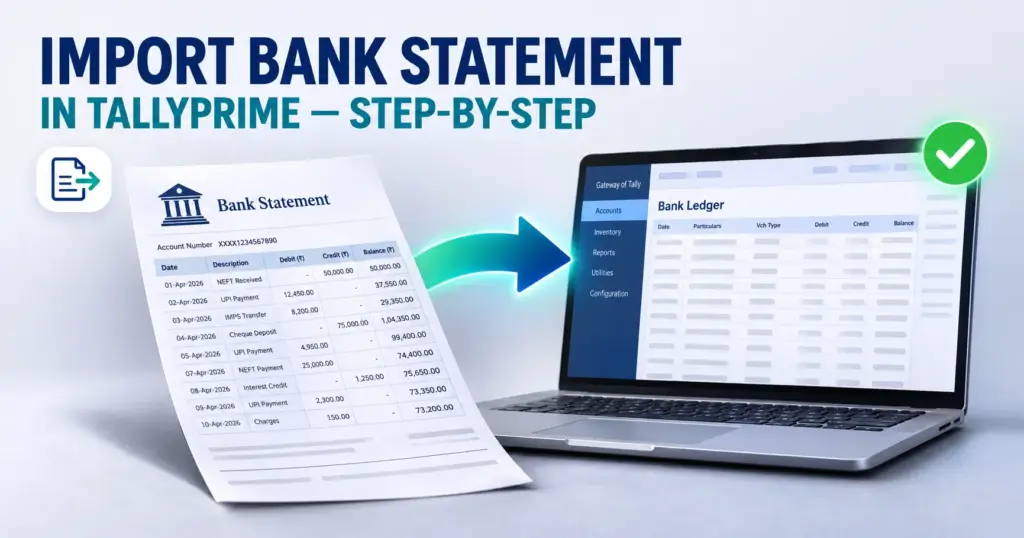
How to Import Bank Statement in Tally Prime (2026 Guide)
Table of Contents
ToggleQuick Summary — How to Import Bank Statement in Tally Prime
To import a bank statement in TallyPrime, first download the statement directly from your bank portal in a format supported by TallyPrime. For supported banks, TallyPrime can import bank statements in formats such as CSV or Excel. The statement should not be open in another application, and its transaction dates should fall after the Reconciliation Beginning Date configured for the bank ledger.
Then follow these steps:
- Open the required company in TallyPrime.
- From Gateway of Tally, press Alt+O (Import) → Bank Statement.
- In the Import Bank Statement screen, select the correct Bank Ledger.
- Specify the File Path where the downloaded statement is saved.
- Set File Type to Supported.
- Select the File to Import.
- Set Show Preview to Yes.
- Press Ctrl+A.
- TallyPrime opens the Bank Statement Preview screen. Review the transactions and press I (Import) to complete the import.
- After the import, TallyPrime displays the Summary of Imported Statement, where you can see the number of entries imported and any exact matches identified.
- Press S (Bank Reconciliation Summary) if you want to proceed directly to bank reconciliation.
Afterward, you can view the imported transactions at any time by going to:
Alt+G (Go To) → Imported Bank Data
or
Gateway of Tally → Banking → Imported Bank Data.
The imported statement can then be used to compare bank transactions with entries already recorded in your books. TallyPrime can identify matching transactions, help with bank reconciliation, and allow you to create payment or receipt vouchers from relevant bank statement entries where required.
What Does Bank Statement Import Mean in TallyPrime?
Bank statement import brings transaction information from your bank statement into TallyPrime.
It does not simply attach a statement file to your company. TallyPrime reads the supported statement data and makes the bank transactions available for accounting and reconciliation work.
According to Tally’s current documentation, an imported statement can be used to create payment or receipt vouchers and to reconcile transactions in your books against entries appearing in the bank statement. TallyPrime can identify transactions that appear to match and separate those that need further attention.
What You Need Before Importing a Bank Statement
A large number of import problems happen before the user even reaches the Import screen. Spending a minute checking the bank ledger and statement file can save considerably more time later.
Configure the correct bank ledger
The ledger used for import should represent the actual bank account whose statement you are importing.
If a bank ledger does not appear while you are trying to import a statement, check its banking configuration. Tally’s banking guidance specifically recommends checking details such as the bank name, bank account number and IFSC where applicable.
Do not select a similarly named ledger simply to complete the import. If your company maintains two accounts with the same bank, confirm the account before proceeding.
Download the statement from the bank portal
Use the original statement downloaded from your bank whenever possible.
TallyPrime currently supports statement import for more than 145 banks, although the exact format available depends on the bank.
Changing column headings, deleting rows, adding formulas or passing the statement through conversion software can affect whether TallyPrime recognises the format.
Check the statement period
The transactions in the statement must fall after the applicable Reconciliation Beginning Date. If the statement covers an earlier period, transactions may not appear as expected after import.
This becomes particularly relevant for companies switching from manual bank reconciliation to statement-based reconciliation.
Close the file before importing
If you opened the statement in Excel to check it, close the file before attempting the import.
An open statement can cause TallyPrime to report that the file is already in use.
Also make sure the folder containing the statement allows write access, which is listed among Tally’s prerequisites for statement import.
Which Bank Statement Formats Does TallyPrime Support?
File format is one of the most misunderstood parts of bank statement import.
Tally’s current Banking FAQ lists CSV, Excel and MT940 among the statement formats that may be imported when downloaded in a supported format from the bank portal.
A quick overview:
Statement format | Bank statement import | What to know |
Excel | Supported where bank format is recognised | Prefer the original file downloaded from the bank |
CSV | Supported where bank format is recognised | Standard CSV formatting may be required |
MT940 | Supported for applicable banks/formats | Availability depends on the bank |
Not directly supported | Download another supported format from the bank | |
Excel/CSV converted from PDF | Not supported through the native statement workflow | Use an original bank-generated statement instead |
The important point is that a file extension alone does not make a statement compatible.
For example, taking a PDF, converting it to Excel and saving it as .xlsx does not turn it into the same bank-generated Excel structure that TallyPrime expects. Tally’s documentation specifically says that PDF statements and CSV/Excel files converted from PDF or third-party software are not supported by the native bank statement import process.
If your bank gives several download options, choose a supported structured format directly from its portal rather than starting with PDF.
How to Import Bank Statement in Tally Prime :Simple Steps to Follow
Once the bank ledger and statement are ready, you can start the actual import.
Step 1: Download the statement for the required period
Log in to your bank’s internet banking or business banking portal and download the statement.
Choose the date range carefully. If you are reconciling April 2026, for example, avoid importing an unnecessarily large statement covering the entire financial year unless you genuinely need that period.
Save the file somewhere easy to locate. Avoid editing the statement after downloading it.
Step 2: Open the correct company in TallyPrime
Launch TallyPrime and open the company whose bank transactions you are working on.
It sounds obvious, but accountants managing data for multiple businesses should check the company name before importing financial information.
Step 3: Open Bank Statement Import
From Gateway of Tally, press:
Alt+O (Import) → Bank Statement
This opens the Import Bank Statement screen.
Step 4: Select the bank ledger
Choose the ledger linked to the bank account represented by the statement.
For example, if the statement belongs to your HDFC current account, select the corresponding HDFC bank ledger rather than another company bank account.
If the required ledger is missing, stop here and correct the ledger configuration before importing anything.
Step 5: Specify the file location
Enter or browse to the folder where the downloaded statement is saved.
Then select the appropriate File Type and choose the statement you want to import.
Tally’s current workflow asks users to select the Bank Ledger, File Path, supported File Type and File to Import.
Step 6: Turn on statement preview
Set Show Preview to Yes.
Previewing is worth the extra click. It gives you an opportunity to check whether TallyPrime is reading the intended statement before the data becomes part of the reconciliation workflow.
Look at the dates and transaction information. If something appears completely wrong, go back and confirm the file and bank ledger.
Step 7: Import the statement
Press Ctrl+A.
TallyPrime opens the Bank Statement Preview screen. Review it and press I (Import) to complete the process.
Once the import finishes, TallyPrime displays a summary showing the number of entries imported and information about exact matches it has identified.
Step 8: Open Bank Reconciliation Summary
From the import summary, press S (Bank Reconciliation Summary) if you want to continue directly to reconciliation.
At this point the statement has been imported, but your work may not be finished. You still need to check which transactions matched, which ones exist only in the books and which bank entries need accounting treatment.
Where to View an Imported Bank Statement
You do not have to import the statement again just because you closed the summary screen.
To review previously imported transactions:
Alt+G (Go To) → Imported Bank Data
Alternatively:
Gateway of Tally → Banking → Imported Bank Data
Use F2 (Period) if you need to change the reporting period. TallyPrime also allows you to drill down into the report to see transactions for a particular day.
If you know the import completed successfully but cannot see the transactions, check the report period first. A statement imported for April will not necessarily appear while the report is displaying September.
The Reconciliation Beginning Date is another item to inspect. Tally’s banking FAQ notes that imported transactions should fall within the report period and later than the Reconciliation Beginning Date.
What Happens During Bank Reconciliation?
Importing the statement gives TallyPrime bank-side transaction data. Reconciliation is where that data is compared with the accounting transactions recorded in your company. This distinction matters.
Suppose your books contain a receipt from a customer for ₹40,000. The bank statement contains the corresponding ₹40,000 credit. Those two records represent the same financial event, but they came from different sources. The purpose of reconciliation is to establish that they belong together.
TallyPrime’s current auto-reconciliation workflow identifies Exact Matches and can also surface Potential Matches. Potential matches can be based on transaction information such as instrument date, amount and party. Not every transaction will match automatically.
Differences commonly arise because:
- A transaction has not yet been recorded in the books.
- A cheque was entered in TallyPrime but cleared by the bank later.
- Bank charges appear only in the statement.
- An instrument number is missing or different.
- The amount was recorded incorrectly.
- Several book entries relate to one bank transaction, or the reverse.
Treat matching as an accounting review rather than a button that should be accepted without inspection.
An exact match is useful because it reduces manual comparison, but the underlying transaction still belongs to your financial records. If anything looks unusual, check the source voucher and statement entry before finalising it.
Creating Vouchers from Imported Bank Transactions
One of the practical advantages of statement import is that bank data can also help with voucher creation.
TallyPrime supports creating payment and receipt vouchers from imported bank entries. Its current documentation describes single, multiple and consolidated voucher creation from statement data.
This can be especially useful where a transaction appears in the bank but has not yet been entered in the books.Take bank charges as an example.
Your bank may deduct charges automatically. The amount appears on the statement, but no accountant manually initiated the transaction, so a corresponding voucher may be missing from TallyPrime. The imported bank entry alerts you to that gap.
Before creating the voucher, however, determine the correct ledger and accounting treatment. Imported data tells you what happened at the bank. It does not remove the need to decide how that transaction should be classified in the books.
The same caution applies to customer receipts and supplier payments. Verify the party, amount, date and relevant bill allocation before accepting the accounting entry.
For repetitive transactions, creating vouchers from bank data can remove a significant amount of retyping. Accuracy still depends on reviewing what is being posted.
Exact Matches, Potential Matches and Unmatched Transactions
The reconciliation screen becomes easier to work with once you understand what the different transaction situations mean.
Exact matches
These are bank and book entries TallyPrime has linked based on corresponding transaction information.
Tally’s current reconciliation instructions allow users to review Exact Matches and reconcile the selected transactions from the Bank Reconciliation report.
Potential matches
A potential match deserves closer inspection.
The amount may be the same, for instance, while another detail differs. TallyPrime can identify possible relationships based on available information, but users should confirm that the transactions genuinely belong together.
Available only in bank
An entry visible only on the bank side often indicates that the accounting transaction has not been recorded yet.
Bank charges are a common example, although other automatic deductions or credits can create the same situation.
Tally’s FAQ also notes that missing or incorrect instrument numbers can prevent entries from matching even where the underlying transaction already exists in company books.
Available only in books
A transaction present in your accounting records may not yet have appeared in the bank statement.
A cheque entered in your books but not cleared by the statement date is a familiar example.
Do not create duplicate vouchers simply because an entry does not match immediately. First establish whether it is genuinely missing from the books or merely waiting to clear through the bank.
Bank Statement Import vs Connected Banking
Downloading a statement and importing it manually is not the only way TallyPrime can receive bank statement data.
TallyPrime also offers Connected Banking for supported banks and eligible users.
With normal bank statement import, the sequence is:
Bank portal → Download statement → Import file into TallyPrime
With Connected Banking, an eligible bank account can be connected so that statement data can be requested from within TallyPrime.
Tally’s current Connected Banking instructions use:
Alt+Z (Exchange) → All Banking Options → Get Statement
The user then selects the bank ledger, sets the statement period, requests the statement and imports the completed request.
The two workflows should not be confused.
Support for offline bank statement import covers a much broader list of banks, while Connected Banking availability depends on bank-specific integration and other prerequisites.
For many businesses, downloading an Excel or CSV statement remains perfectly practical. Connected Banking becomes more relevant where supported accounts are used frequently and the business wants to reduce the repeated download-and-import routine.
Common Bank Statement Import Problems
A failed import does not necessarily mean your TallyPrime data is damaged. Often the problem is a ledger setting or file format.
Bank ledger does not appear
Open the bank ledger and check that the appropriate bank has been configured. Also review account information such as the bank account number and IFSC where relevant.
If the bank or statement format itself is unsupported, Tally advises users to contact its support team for assistance with configuration.
CSV file does not import
Not all CSV variants behave identically. Tally’s current FAQ recommends resaving formats such as CSV UTF-8, CSV Macintosh or CSV MS-DOS as CSV (Comma delimited) when users encounter import problems.Make a backup copy of the original statement before resaving anything.
Excel statement does not import
Older Excel formats can also create problems.
Tally recommends resaving older formats such as .xls, .xlsb or .xlsm as an Excel workbook in .xlsx format where relevant to the issue. This troubleshooting step is different from converting a PDF into Excel. The source should still be the genuine structured bank statement.
Tally says the statement is already open
First close the file in Excel or any other application.
If the error continues, Tally’s FAQ suggests adding -imp to the end of the file name before importing it. For example:
statement.csv
can be renamed:
statement-imp.csv
Imported entries are missing
Check both the report period and the Reconciliation Beginning Date. A successful import does not mean every historical entry will appear in whatever date range is currently displayed.
Can You Import a PDF Bank Statement into TallyPrime?
Not through TallyPrime’s native Bank Statement import workflow.
Tally’s current banking documentation is explicit: PDF statements are not supported for direct bank statement import. It also states that CSV or Excel files converted from PDF or third-party software are not supported through this workflow.
That distinction is useful because many online guides use the phrase “PDF to Tally” for third-party conversion processes. Those workflows may create other importable data or vouchers, but they are not the same thing as importing an original supported bank statement through TallyPrime’s built-in Bank Statement option.
If your bank portal gives you PDF, Excel and CSV choices, download the original Excel or CSV version.
If only PDF is available, check with the bank to see whether a structured statement format can be provided before looking for a conversion workaround.
What If You Import the Wrong Statement?
Selecting the wrong month or bank account is easy when several files have similar names.
TallyPrime provides a Reset Bank Statement Data option for this situation.
According to Tally’s current FAQ, you can go to:
F1 (Help) → Troubleshooting → Reset Bank Statement Data
Then select the bank ledger, decide whether the reconciliation status should be retained, and specify the relevant From and To dates. Be careful with the date range.
Resetting data affects the imported statement information for the selected period, so review the bank ledger and dates before accepting the action. Tally also allows bank statement data to be cleared while retaining reconciliation status where the relevant transactions have already been reconciled.
This is preferable to trying to “fix” a wrong import by creating extra vouchers or manually altering unrelated transactions.
Practical Tips for a Cleaner Bank Import Workflow
A good bank reconciliation routine is usually simple and repetitive rather than complicated. Start by naming downloaded statements clearly. A file such as HDFC-Current-April-2026.xlsx is easier to identify than statement(12).xlsx.
Import one logical period at a time, particularly when you are still getting familiar with statement-based reconciliation. Check the bank account before every import. Businesses with several current accounts can easily select the wrong ledger when names look similar.
Keep original statements unchanged whenever possible. If troubleshooting requires resaving a CSV or Excel file, retain a copy of the bank-downloaded original for reference. Review unmatched entries instead of assuming that matching software should clear everything automatically. An unmatched item may reveal a legitimate bookkeeping omission.
Pay particular attention to bank charges, interest entries, automatic debits, payment gateway settlements and other transactions that may reach the bank without being entered manually in the books.
For voucher creation, verify the ledger allocation before saving. A perfectly imported amount can still be posted to the wrong expense, customer or supplier ledger if the accounting choice is incorrect.
Most importantly, reconcile regularly. A monthly statement containing 80 transactions is usually easier to investigate than six months of accumulated differences.
Frequently Asked Questions
Can I import an Excel bank statement into TallyPrime?
Yes, provided the statement is in a format supported for your bank. It is best to use the original Excel statement downloaded directly from the bank portal rather than an Excel file created by converting a PDF.
Can I import a CSV bank statement?
Yes. CSV is one of the supported statement formats where the bank’s format is recognised by TallyPrime. If a CSV fails to import, Tally recommends checking whether it needs to be resaved as CSV (Comma delimited).
Can I import an MT940 statement into TallyPrime?
Tally’s current Banking FAQ lists MT940 alongside CSV and Excel as supported bank statement formats, subject to the applicable bank and statement structure.
Does importing a statement automatically create all accounting vouchers?
No. Imported statement data can be used to create vouchers and to reconcile bank entries against transactions already recorded in the books. Users still need to review the accounting treatment and take the appropriate action for entries that are not already represented in company books.
Where can I check an imported bank statement later?
Press Alt+G, search for Imported Bank Data, and open the report. You can also access it from Gateway of Tally → Banking → Imported Bank Data.
Why are some transactions not matching after import?
Differences in instrument numbers, dates, party information or amounts can prevent an automatic match. A transaction may also genuinely be missing from the books. Review the bank and book entries before creating or modifying a voucher.
What should I do if I accidentally import the wrong statement?
Use Reset Bank Statement Data from TallyPrime’s Troubleshooting options. Select the correct bank ledger and period carefully before clearing the imported data.
Can I import the same statement again?
Before repeating an import, first check Imported Bank Data to confirm what is already present. Reimporting files unnecessarily can complicate review. If an incorrect statement was imported, use the reset facility rather than repeatedly importing files until the report appears correct.
Final Thoughts
Learning how to import bank statement in Tally Prime is mainly about getting three things right: the bank ledger, the statement format and the period. Once those are correct, the actual import takes only a few steps: open Alt+O → Bank Statement, select the ledger and statement, preview the data, import it and move to Bank Reconciliation.
The real value appears after the import. Instead of treating a bank statement as a separate document that has to be checked manually against TallyPrime, you can review both sides of the reconciliation inside the accounting workflow. Exact matches are easier to identify, missing entries stand out and imported bank transactions can be used when vouchers still need to be created.
If you are setting up bank reconciliation for the first time, dealing with recurring import errors, or want help configuring TallyPrime correctly for your business, TallyMantra can help you work through the setup and day-to-day process. The aim is not to add another layer to your accounting routine, but to make sure the TallyPrime features you already use are configured in a way that fits how your accounts are actually maintained.