

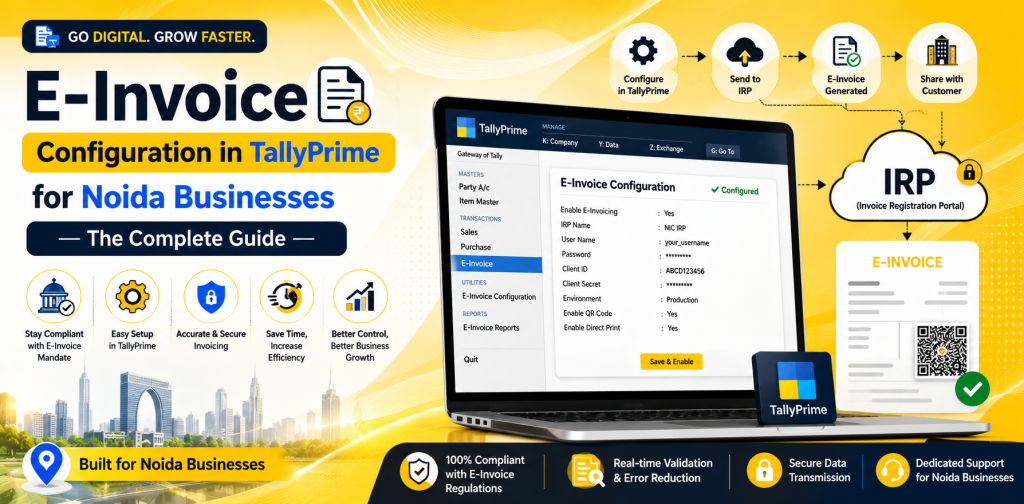
E-Invoice Configuration in TallyPrime for Noida Businesses — The Complete Guide
For most accounts teams, e-invoicing becomes confusing not because creating an invoice is difficult, but because several things have to be correct at the same time. The GSTIN, customer details, HSN or SAC, invoice number and TallyPrime configuration all need to match the information expected by the Invoice Registration Portal.
Once the initial setup is done properly, the process becomes much more routine. You can continue creating sales invoices in TallyPrime and send the required information to the IRP for generation of the Invoice Reference Number, commonly called IRN, and the signed QR code.
If you are trying to understand how to enable e invoice in Tally Prime, this guide takes you through the complete process, from the first configuration to generating an IRN and checking invoices that need attention.
Table of Contents
ToggleWhat Actually Happens When You Create an E-Invoice in TallyPrime?
There is a common misunderstanding that an e-invoice has to be prepared separately on a government portal. That is not how the regular TallyPrime workflow works.
You record the sales transaction in TallyPrime with the required GST and invoice information. The relevant data is then sent to the IRP, where it is validated. If everything is accepted, an IRN and signed QR code are returned for that invoice.
This means your accounts team does not need to maintain one invoice in Tally and recreate the same invoice somewhere else. The important part is making sure the information recorded in TallyPrime is complete and accurate before it is submitted.
Is E-Invoicing Applicable to Your Business?
Under the current GST framework, e-invoicing generally applies to notified businesses whose aggregate annual turnover has crossed the prescribed threshold of ₹5 crore in any applicable financial year, subject to notified exemptions and other conditions.
Applicability should still be checked for the individual business rather than assumed from turnover alone. Certain entities and transaction types can be treated differently under GST rules, so it is sensible to confirm your position with your CA or tax professional.
E-invoicing generally covers notified transactions such as eligible B2B invoices, exports, debit notes and credit notes. It is therefore important to understand both whether your business is covered and which transactions need to be reported.
Before You Enable E-Invoicing, Check These Details
It is tempting to go straight into TallyPrime settings, but a quick check beforehand can save time later. Many IRN errors come from the data inside an invoice rather than from the e-invoice feature itself.
Before starting, review the following:
- GST is enabled for the company in TallyPrime
- Your GSTIN and registration details are correct
- Customer GSTINs and state details are updated
- HSN or SAC details are available where required
- GST rates are correctly configured
- Company and billing addresses are accurate
- Invoice numbering follows the required format
- Your business is registered or enabled on the IRP
- Internet access is available for online IRN generation
If your business has several GST registrations, pay extra attention to which registration you are configuring. The e-invoicing setup should correspond to the GST registration under which those transactions are being recorded.
Setting Up E-Invoicing in TallyPrime
Once the basic information has been checked, the actual configuration in TallyPrime is fairly short. The screens may look slightly different depending on your TallyPrime release and GST setup, but the current process follows these steps.
Step 1: Open Company Features
Open the company for which you want to configure e-invoicing and press F11 to open Company Features. Make sure Enable Goods and Services Tax (GST) is set to Yes.
When GST is enabled, the GST Details screen becomes available. If your company uses multiple GST registrations in a supported TallyPrime release, select the registration for which e-invoicing needs to be enabled.
Step 2: Enable the E-Invoicing Option
Inside the relevant GST registration details, find e-Invoicing applicable and set it to Yes. TallyPrime will then show the additional settings required for e-invoicing.
Enter the Applicable from date carefully. This should represent the date from which e-invoicing applies to transactions under that registration.
Step 3: Check the Invoice Bill From Place
Review the Invoice bill from the place field and enter the location from which supplies are billed. This may be the same as the dispatch location, but that is not always the case.
For businesses with offices and warehouses at different locations, this small detail deserves attention. A Noida company, for example, may raise invoices from its office while goods are dispatched from another location.
Step 4: Save the Configuration
Once the information has been reviewed, save the GST configuration. At this stage, e-invoicing is enabled inside TallyPrime, but you still need the appropriate IRP setup before you can generate IRNs online.
Before creating your first live e-invoice, check a few customer and item masters as well. Correct master data makes the daily invoicing process considerably smoother.
Register on the IRP and Create the API User
TallyPrime needs to communicate with the Invoice Registration Portal to generate an IRN online. For that reason, businesses need the appropriate IRP registration and API setup.
After registering on the IRP, log in and create an API user. When choosing the GSP, select Tally (India) Private Ltd and create the API username and password required for the connection.
One detail often causes confusion here: your API credentials are not necessarily the same as your normal IRP login credentials. Keep both sets of details properly recorded so the accounts team knows which credentials are required.
If you already have an e-Way Bill API profile that you use with TallyPrime, you may not need to create another API user profile specifically for e-invoicing.
How to Generate Your First E-Invoice in TallyPrime?
After the setup is complete, create the sales transaction as you normally would. Enter the customer, sales ledger, item or service, quantity, value and GST details, along with any other information required for the transaction.
Before sending it for IRN generation, take a moment to check:
- Customer GSTIN
- Invoice date and number
- Place of supply
- HSN or SAC
- Taxable value
- GST rate and amount
- Item or service details
- Dispatch and transport information, where applicable
Tally recommends avoiding invoice numbers that begin with 0, / or –, as such numbering can be rejected by the IRP.
When the invoice is ready, send the e-invoice information through TallyPrime. After successful validation, the IRP returns the IRN and signed QR code, which can then form part of the invoice record.
What If You Have Many E-Invoices to Generate?
A business issuing dozens of invoices in a day may not want to handle IRN generation one transaction at a time. TallyPrime supports bulk IRN generation for eligible transactions.
From the Exchange menu, you can open Send for e-Invoicing and view transactions waiting for generation or cancellation. The required transactions can then be selected and sent together.
Bulk generation saves time, but it does not fix incomplete data automatically. If an invoice contains an incorrect GSTIN, missing mandatory information or another validation problem, that transaction may still need to be corrected separately.
Use the E-Invoice Report Instead of Guessing What Is Pending
One useful part of the current TallyPrime workflow is the e-Invoice report. It gives the accounts team a central place to review e-invoice transactions rather than checking individual vouchers and trying to remember which invoices were successfully reported.
You can open the report through Go To and search for e-Invoice. From there, you can review transactions that require IRN generation or cancellation, identify errors and check IRN-related information.
For a business with regular invoice volume, checking this report should become part of the accounts routine. It is much easier to fix one failed invoice today than discover a large group of pending invoices at the end of the month.
Common E-Invoice Errors and What to Check
Most e-invoice errors have a specific cause. Instead of repeatedly sending a rejected transaction, read the validation message and correct the information responsible for it.
| Problem | What to Check |
| GSTIN error | Verify the customer’s GSTIN and state |
| HSN or SAC error | Review the code entered in the relevant master |
| IRN not generated | Check mandatory invoice fields and the IRP response |
| Invoice rejected | Review number format, date, values and GST details |
| GSTIN not enabled | Check the business’s e-invoice enablement on the IRP |
| Connection problem | Check internet connectivity and portal availability |
Keeping customer, item and GST masters clean prevents many of these issues from appearing repeatedly. If the same error keeps occurring, fix the underlying master or configuration rather than correcting every invoice individually.
Why Does This Matters for Businesses in Noida?
A growing Noida business may have billing at one office, stock at another location and an external accountant or CA reviewing records periodically. In such a setup, small mistakes can easily remain unnoticed unless there is a clear process for checking them.
The best e-invoicing setup is therefore not just one that successfully generates the first IRN. It should also make it easy for the team to record invoices correctly, identify failures quickly and keep GST information consistent as transaction volume grows.
Frequently Asked Questions
1. How do I enable e-invoice in TallyPrime?
Open Company Features using F11 and make sure GST is enabled. In the relevant GST registration details, set e-Invoicing applicable to Yes, enter the applicable date, check the billing-place information and save the configuration.
You will also need the appropriate IRP registration and API setup for online IRN generation. Simply switching on the feature inside TallyPrime does not complete the portal-side setup.
2. Does TallyPrime generate the IRN automatically?
TallyPrime can send eligible invoice information to the IRP and receive the IRN after successful validation. The invoice still needs complete and valid information before the portal will accept it.
IRNs can be generated while handling transactions or later for multiple eligible transactions through the bulk e-invoicing workflow.
3. Can I generate an e-invoice and e-Way Bill together?
Yes, TallyPrime supports sending e-Way Bill details along with e-invoice information when both are applicable. The relevant transport and e-Way Bill information needs to be configured correctly.
Businesses should still determine whether an e-Way Bill is required for the particular transaction instead of assuming that every e-invoice needs one.
4. Can TallyPrime generate e-invoices offline?
TallyPrime also provides an offline route where e-invoice information can be exported as JSON and uploaded to the IRP. This can be useful when the normal online process is not being used.
The transaction information still needs to meet IRP requirements, so offline generation should not be treated as a way around data-validation errors.
5. Why is my e-invoice not generated in TallyPrime?
Start with the error shown for the transaction. Common causes include incorrect GSTIN details, missing HSN or SAC information, invalid invoice numbering, incomplete mandatory fields or problems with IRP enablement.
Correct the actual cause before resending the invoice. This keeps the records cleaner and reduces the chance of the same error appearing in future transactions.
Conclusion
Learning how to enable e invoice in Tally Prime is fairly straightforward once the GST details, IRP registration and API setup are in place. The bigger challenge is keeping the information behind each invoice accurate, because even a small error in GSTIN, HSN, invoice numbering or transaction details can interrupt IRN generation.