
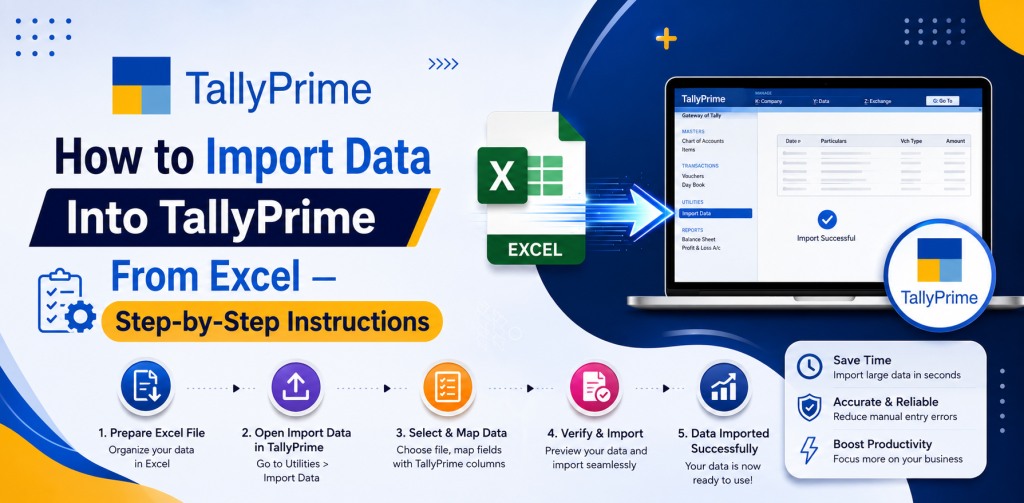
How to Import Data Into TallyPrime From Excel — Step-by-Step Instructions
Manual data entry in TallyPrime can be cumbersome and often prone to error. When there is a great deal of financial information being managed by companies, it’s reasonable to expect an improvement in the way that data is imported into Tally. The purpose of this step-by-step instructional guide is to provide users with the ability to export data from Excel into TallyPrime using either Tally’s native XML import function or a third party tool, creating a seamless process for managing large quantities of data.
This guide is particularly suited to those who need to create a quicker and more efficient means of importing data into TallyPrime, including accountants, business owners, and other professionals.
Benefits of Importing Data in TallyPrime
There are many advantages to exporting your data from Excel into TallyPrime:
- Manual entry takes less time than doing so manually
- Lessens the possibility of accounting and inventory-related human errors
- Assists with the transfer of old systems or spreadsheets into Tally
- Allows for the mass importation of ledgers, vouchers, and stock items
- Aids in establishing a clean slate for your Excel import into TallyPrime projects
Regardless of whether you’re moving to TallyPrime or maintaining substantial data sets, Tally data import is necessary for increasing efficiency.
Prepare Your Excel File for Import
Before you begin importing your Excel file into TallyPrime, you’ll need to set up your Excel file in the proper format:
- Create Separate Sheets for Each Data Type: Place each type of data onto its own sheet (i.e., ledgers, vouchers, stock items)
- Column Headings: Make certain the column headings correspond to the appropriate field names used by Tally (e.g., for ledgers: name, group, opening balance, gst details; for stock items: item name, stock group, unit, rate, opening quantity; for vouchers: date, ledger, amount, stock item, quantity)
- Consistent Data: Remove blank rows, unique characters, or formatting that may interfere with the import
The proper preparation of your Excel file will enable you to perform a seamless TallyPrime Excel import.
Activate the XML Import and Export Functionality
TallyPrime utilizes XML to import bulk data:
- Launch your TallyPrime company
- Go to F11: Functions → F3: Company Functions
- Change the “Allow Data Import/Export via XML” setting to “Yes”
- Save the configuration
Activating this feature is necessary for both Tally XML import functionality and third-party import functionality.
Converting Your Excel File to Tally-Compatible XML (Optional)
TallyPrime cannot directly interpret a regular Excel file. In order to make your Excel file readable by TallyPrime, you’ll need to transform your Excel file to XML format:
- Utilize Tally’s Data Import Template
- Third party converters and/or scripting can transform your Excel file to Tally-compatible XML
- Be sure to format your XML according to Tally’s specifications for ledgers, vouchers, and stock items
Your file is now prepared for Tally data import.
Import Ledgers into TallyPrime
In Tally, Ledgers represent the fundamental accounting structure. To import your ledgers:
- Go to Gateway of Tally → Utilities → Import of Data → Masters
- Select Ledgers from the menu
- Find and Select the Prepared XML file
- Determine what action to perform when importing (Overwrite Existing Data or Create New Only)
- Press Enter to initiate the import process
Upon completion, verify the Ledgers under Accounts Info → Ledgers to confirm they are accurate.
Import Stock Items
When you manage inventory, importing stock items greatly reduces the time you spend:
- Visit Gateway of Tally → Utilities → Import of Data → Masters
Choose Stock Items - Find and Select your XML file which includes the details for your stock
- Confirm the import parameters and proceed
All your stock items, units, rates, and stock groups are now present in TallyPrime and are ready to be used in transactions.
Import Vouchers (Sales/Purchase, Payment/Receipt)
Vouchers serve as documentation for your entire transaction history and are critical for producing reports.
To import your vouchers:
- Visit Gateway of Tally → Utilities → Import of Data → Vouchers
- Select the types of vouchers you wish to import (Sales, Purchase, Receipt, Payment, etc.)
- Find and Select the XML file
- Decide how to handle voucher numbers (Update Existing or Create New)
- Confirm import
After the import has completed, review your vouchers in Display → Day Book to confirm their accuracy. Proper mapping of your ledgers and stock items ensures that your bulk data Tally transactions are accurate.
Utilize Third Party Tools for Bulk Imports
For larger data sets or for repeated imports, utilizing third party tools simplifies the process:
- Third party tools such as Tally Connector, Excel-to-Tally Add-Ons, or API-based solutions
- Automatically transforms your Excel file into Tally XML
- Makes scheduling imports for repeated data entry possible
Using third-party solutions makes the TallyPrime Excel import process more efficient and minimizes manual interaction.
Validate Your Data After Import
After the import is complete, validation is a must:
- Verify Ledger Masters to confirm that your balances are correct and that your groupings were properly assigned
- Review Stock Items to confirm that your units, opening quantities, and rates are correct
- Validate Vouchers to confirm that your amounts, dates, and ledger mappings are correct
- Compare totals in your Trial Balance and Stock Summary to your original Excel file
Validation confirms that your Tally data import was performed accurately and without error.
Back Up Your Data
You should back up your data before and after the import:
- Visit Gateway of Tally → Alt + F3: Company Information → Backup
- Select the directory to store your backup
- Store several backups for security
Backing up your data protects against accidental overwriting, corrupting, or failing to import data.
Suggestions for Successful Tally Data Import
- Establish consistent naming standards for ledgers, stock items, and voucher references
- Utilize the same date formats as Tally
- Do not utilize any special characters in your Excel file that could damage the XML structure
- Perform your imports in smaller batches if you have very large files to prevent errors
- Always verify and reconcile after your import
By following these best practices, you can perform a successful Tally XML import and operate bulk data Tally.