
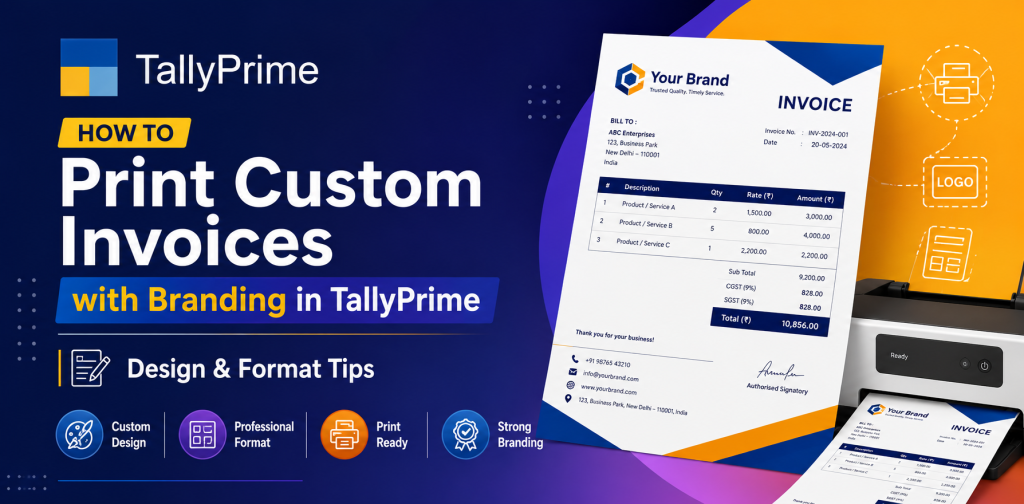
How to Print Custom Invoices with Branding in TallyPrime – Design & Format Tips
Invoices represent much more than simply a recording of sales. They provide an important means of communication. The quality of an invoice’s appearance represents the professionalism of the business and the extent to which a client trusts the business. TallyPrime enables businesses to generate and print high-quality, custom-branded invoices to meet their specifications. Whether you operate a retail outlet, a service-oriented enterprise, or a manufacturing facility, knowledge of how to print a Tally custom invoice will assist in providing better client interaction and more efficient billing processes.
The benefits of creating custom-branded invoices:
- Create a positive first impression of your business through your company logo, colors, and fonts.
- Document the sale in a professional manner to your clients.
- Assist with compliance of the GST and accounting regulations.
- Provide you with easier tracking of your records.
By taking advantage of Tally custom-branded invoice solutions, you not only enhance the perception of your customers, but you also reduce billing errors and shorten payment cycles.
Enable Printing and Set Up Business Data
Before designing invoices, you should verify that the printing options are active:
- F12: Configure → Printing → Ensure Enable Printing of Invoices = Yes.
- Complete your company data with:
- Company name
- Company address
- GSTIN and PAN
- Contact information.
The company data you enter will be used to ensure that your printed invoices are both compliant and professional.
Enter Your Logo
Your logo is an integral part of your branded invoice. To upload your logo into TallyPrime:
- F12: Configure → Invoice Printing → Enable Print Company Logo
- Enter your logo image (JPEG, PNG) with the appropriate resolution
- Insert your logo onto the invoice header to maximize its impact.
When you have completed the above steps, your Tally custom invoice print will clearly reflect your business identity.
Determine Which Invoice Format to Utilize
TallyPrime offers a variety of options to customize the invoice format to fit your business needs:
- Standard Invoice Format: This format includes the standard layout of the invoice with the most basic details such as items, quantities, prices, and totals.
- Tax Invoice Format: This format is GST compliant and has HSN/SAC codes and tax details.
- Customized Layout: This format includes your company logo, color schemes, and the way you want to arrange the columns.
Choosing the correct Tally bill format ensures clarity and compliance with accounting regulations.
Modify the Invoice Fields
You may choose to alter the fields displayed on your invoice:
- F12: Configure → Invoice Configuration → Select the fields to display, such as:
- Customer details (name, address, contact
- Invoice number and date
- Item description, quantity, price
- Total amount
- Payment terms and notes
Altering fields enable your TallyPrime invoice design to fit your business processes and your client’s expectations.
Arrange Columns and Layout
An organized and clean layout enhances readability:
- Arrange columns for the item name, quantity, price, and amount
Bold headers - Adjust column width so that there is enough space for lengthy item names
- Include subtotal and tax details at the end.
These changes will produce professional-looking invoices and facilitate better client relations, and positively affect your impression of a branded invoice Tally.
Enable GST and Tax Details
As required by law, GST registered businesses must display tax-related information on their invoices:
- F11: Features → Statutory & Taxation → Enable GST
- Each stock item has a valid HSN/SAC code
- GST rate per item has been configured in item master
- Tax detail is displayed on the invoice.
This will ensure that your Tally custom invoice print complies with GST regulations and will avoid errors when submitting your returns.
Print a Test Invoice
Prior to finalizing, it is essential to print a test invoice:- Voucher → Display → Day Book → Print → Verify that the logo is aligned properly and that everything is readable
- Verify that totals, taxes, and client details are accurate.
Save Custom Formats for Future Use
TallyPrime allows you to save your custom invoice formats to utilize in the future:- Configuration of your desired layout, logo, and fields
- Save the configuration as a template
- Template can be applied to future invoices.
Additional Design Ideas for Creating Professional-Looking Branded Invoices
- Colors: Use colors related to your brand to highlight in headings or borders; however, do not compromise readability.
- Highlight Key Details: Highlight the invoice number, total amount, and due date using bold or large fonts.
- Include Terms & Notes: Include payment instructions, thank-you messages, or discount details.
- Cleanliness: Focus only on key information to keep the invoice free of clutter.
- Consistency: Use the same logo, font, and color schemes across all invoices.
Sending Invoices Digitally and Via Email
TallyPrime enables you to send invoices electronically:- Export invoices as PDF or Excel
- Directly email invoices to clients
- Utilize templates to ensure your digital invoice maintains your branding.
Mistakes to Avoid When Designing Branded Invoices
- Poor Quality of the Logo: Low-resolution images will detract from the professionalism of your invoices.
- Overcrowding: Including too many fields will confuse your clients.
- Omission of GST Details: Failure to include GST information will cause non-compliance issues.
- Incorrect Totals or Taxes: Double-check calculations prior to printing invoices.
- Failure to Save Templates: Using different layouts will create inconsistency in your invoices.
By avoiding these common mistakes, you will create flawless, error-free invoices.
Advantages of Creating Branded Invoices Using TallyPrime
Creating branded invoices in TallyPrime enables businesses in Delhi NCR and throughout India to benefit from several advantages:
- Branded invoices will increase awareness of your business and build trust with your clients.
- Professionalism of client communications will be increased.
- Accounting and reporting will become streamlined.
- Billing errors and disputes will decrease.
- Compliance with GST and other statutory requirements will be maintained.
Creating branded invoices produces a positive first impression and fosters good client relations.
Summary
Creating custom-branded invoices using TallyPrime is both simple and necessary for modern businesses. With this step-by-step guide, you will be able to:
- Create professional-looking invoices using your logo and your preferred layout.
- Modify fields, columns, and tax details to suit your business requirements.
- Ensure that your invoices comply with GST and accounting regulations.
- Efficiently print or email invoices.
- Save templates to create consistent branding.
Whether you operate a retail store, a service-based business or a manufacturing facility, developing expertise in how to print a Tally custom invoice will aid in improving your client relationships and the efficiency of your billing process.
Implement these methods now to create branded invoice Tally templates that will make a positive impression on your clients and improve your billing process.